

Guide to Creating Your First Push Campaign
Welcome aboard! You’re now ready to engage your subscribers by sending push broadcasts for your website.
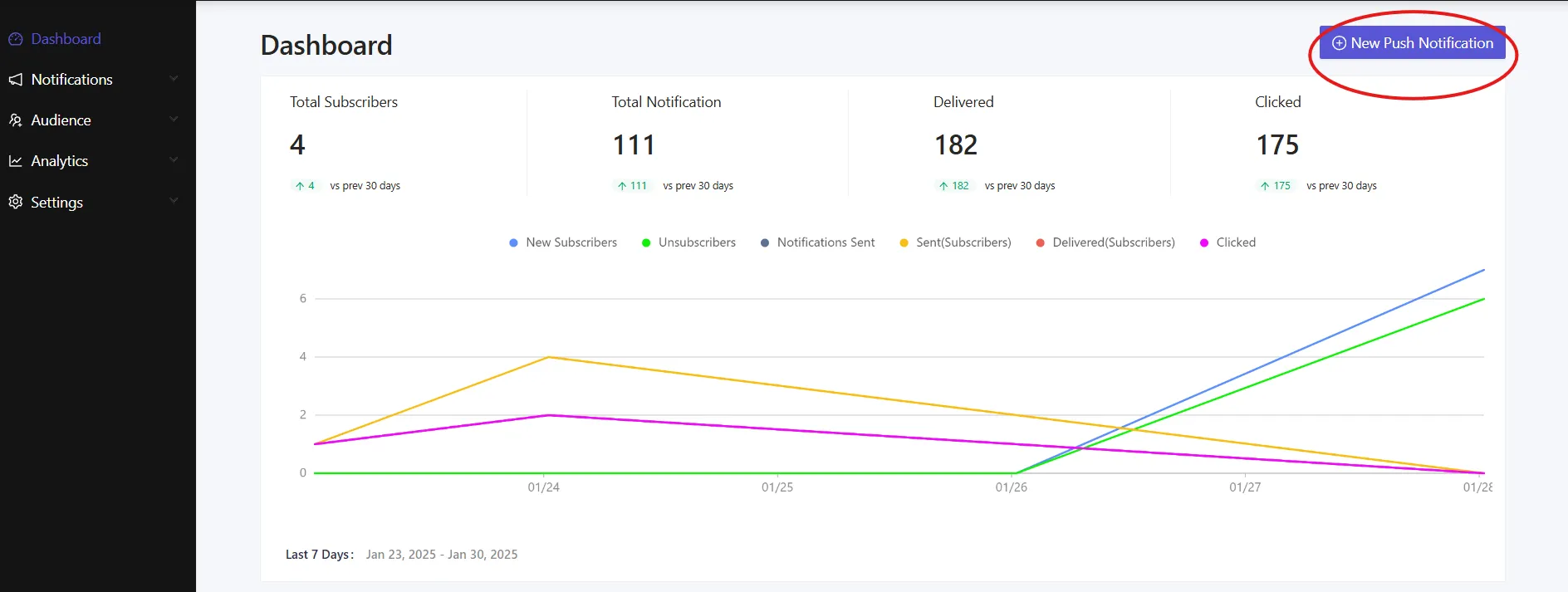
Before Creating the Notification
Section titled “Before Creating the Notification”Before launching a campaign, ensure that AlertWise is properly installed on your website. Without subscribers, your campaigns won’t reach anyone. If you haven’t completed the installation yet, refer to this link and return once it’s set up.
Once you have collected subscribers, you can start sending campaigns. You can either notifications to all subscribers or target specific segments (available in our Subscription plan and above).
Key Points for Notifications
Section titled “Key Points for Notifications”Message Length: Up to 192 characters, including emojis 😊
Title Length: Up to 64 characters
Large Image Size: Maximum 5MB
Notification Icon Size: 192px x 192px
Landing URL: opens when the notification is clicked
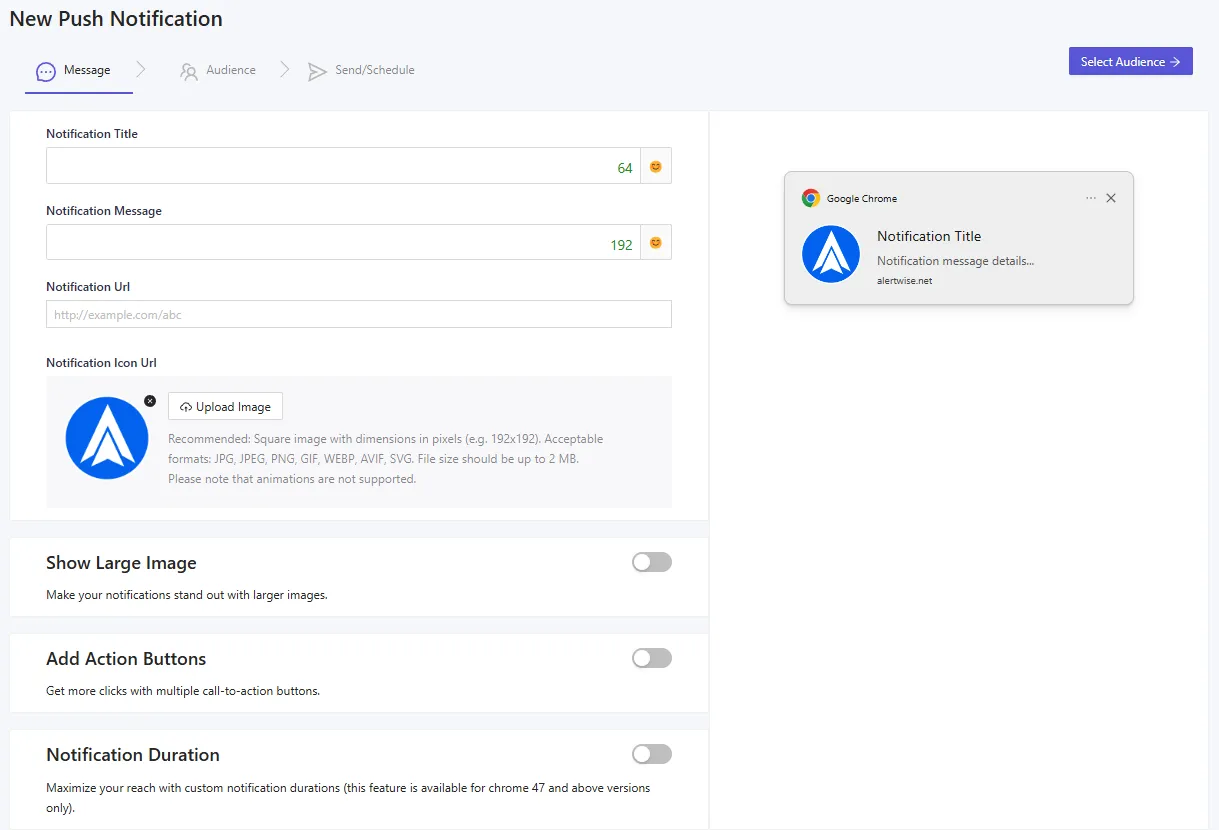
Design Notifications
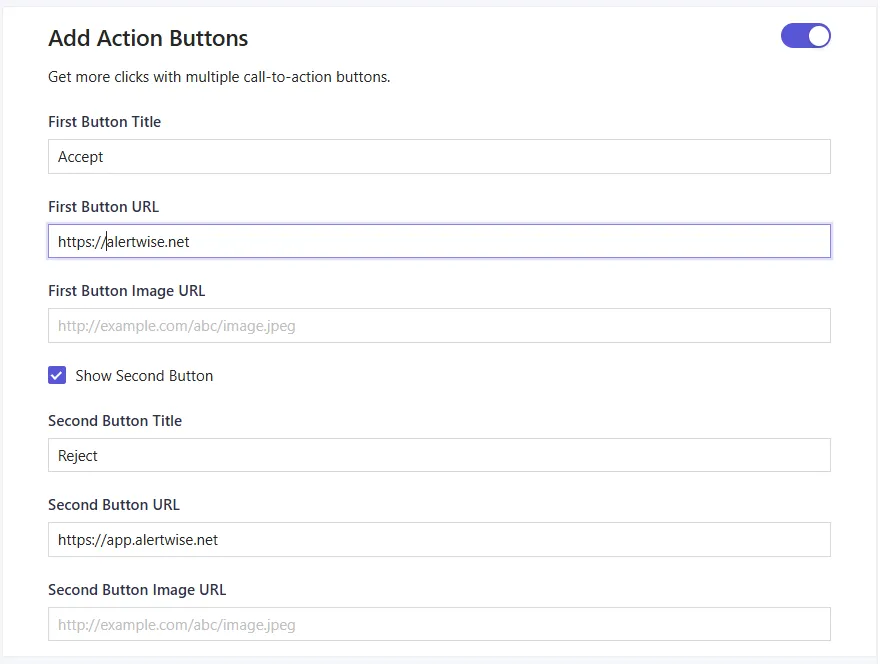
Section titled “Design Notifications”Multi-Action Notifications: Enable buttons to add extra calls to action, boosting engagement.
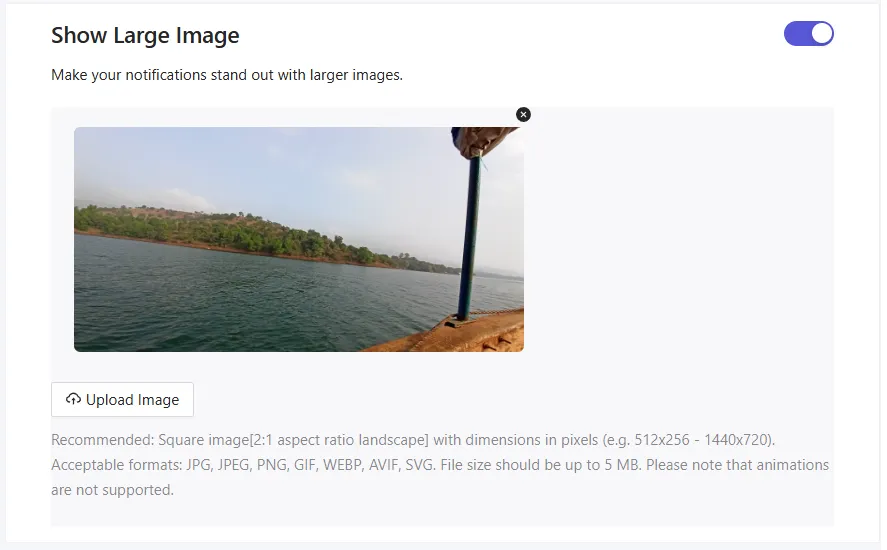
Large Images: A larger image can grab attention and improve click rates.
Desktop: 360×180 px
Mobile: 360×80 px
Notification Behavior, Tracking & Audience
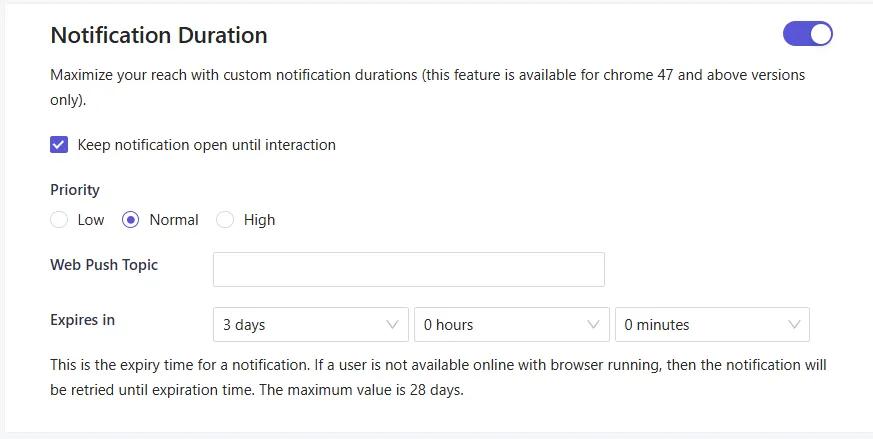
Section titled “Notification Behavior, Tracking & Audience”Notification Duration: Set an expiry time to avoid overwhelming subscribers. Notifications can last up to 28 days before expiring.
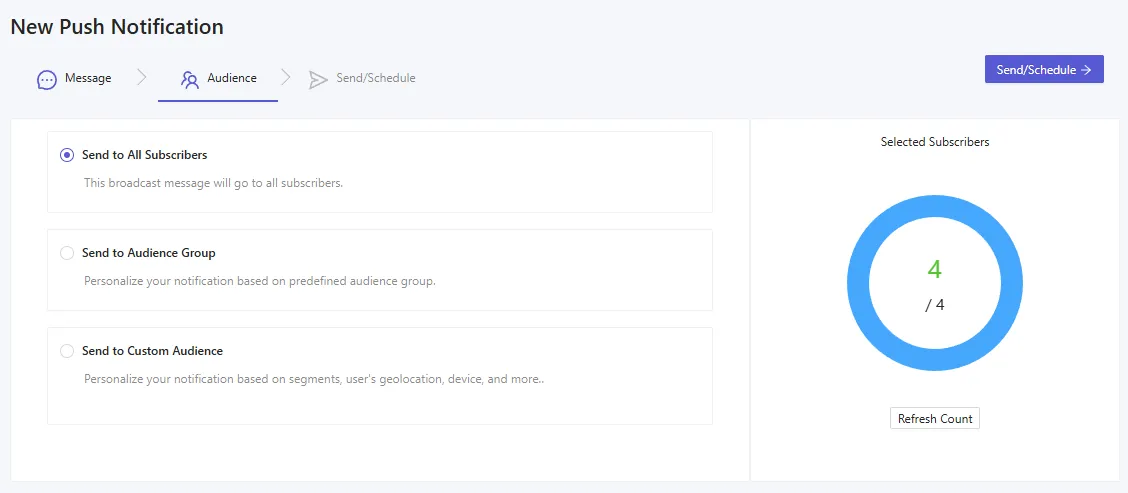
Audience Selection: Allowing targeted notifications to increase engagement. Your audience is the set(s) of users in which you wish to include and exclude from receiving this message.
Scheduling Options
Section titled “Scheduling Options”You can schedule notifications to be sent later, even outside your working hours. Recurring scheduling is also available.
Scheduling Filters:
Section titled “Scheduling Filters:”- Sending notifications on a specific day and time
Launch Your First Push Notification!
Section titled “Launch Your First Push Notification!”Once everything is set up, you’re ready to run your first push campaign and grow your subscriber base.
Need help? [Click here] to contact our support team for assistance. 🚀